






































Slotoking download — mobile access on Android and iPhone, installation, sign-in and updates
There are two ways to download the casino app: on iOS — straight from the App Store by searching the name; on Android — through an installation file from the official mobile site, because Google Play restricts gambling content. A Russian-language search for the same word leads to this page too. Below: system requirements, step-by-step installation, signing in, updates, safety and the support channels of the Sloto King casino client.
The mobile app duplicates the desktop version's functionality: registering in the app, the account area, topping up through the app and withdrawing through the app all work identically. Whether to download the client or stay in the browser depends on the phone model and the free memory available.
This material is informational and is not a call to take part in gambling. Play is available to people aged 21 and over.
| Parameter | Details |
|---|---|
| Platforms | Android phones and tablets, iPhone, iPad |
| Source for iOS | App Store, search by the brand name |
| Source for Android | The official APK from the operator's mobile site |
| Reason for the restriction | Google Play policy on gambling content |
| Alternative | The mobile version of the casino in a browser plus a home-screen shortcut |
| Interface | Adapted for touch screens and portrait orientation |
| Account currency | Hryvnia (UAH) |
Slotoking mobile access — the options
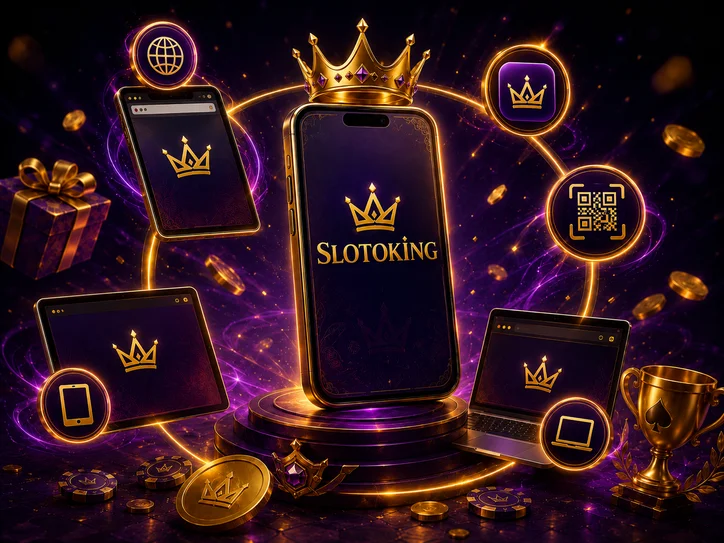
The formats differ in how they launch, not in the set of games. The Sloto King online casino opens in a mobile browser with no installation, as a separate Android client, or as an icon on the iPhone home screen. The balance, the bet history and the bonuses are tied to the account, not to the device.
Client, shortcut and browser version
An installed app holds the session longer and loads slot graphics faster. A shortcut is a link to the mobile version in full-screen mode: it takes almost no space and updates itself. Signing in through the browser suits one-off sessions and devices with little memory.
System requirements for a smartphone
- At least 150 MB of free memory — installation stops when there is not enough room.
- A current OS version and an up-to-date default browser.
- Stable Wi-Fi or 4G: mobile slots are sensitive to dropped connections.
- Battery at 30% or above — an interruption during installation damages the file.
- VPN switched off at the sign-in and payment stages.
| Indicator | Typical value |
|---|---|
| Android | Version 8.0 and newer |
| iOS / iPadOS | Version 13 and newer |
| RAM | From 2 GB |
| Connection speed | From 3 Mbit/s for slots, from 8 Mbit/s for live |
| Screen size | From 5 inches for comfortable navigation |
Installing Sloto King on Android
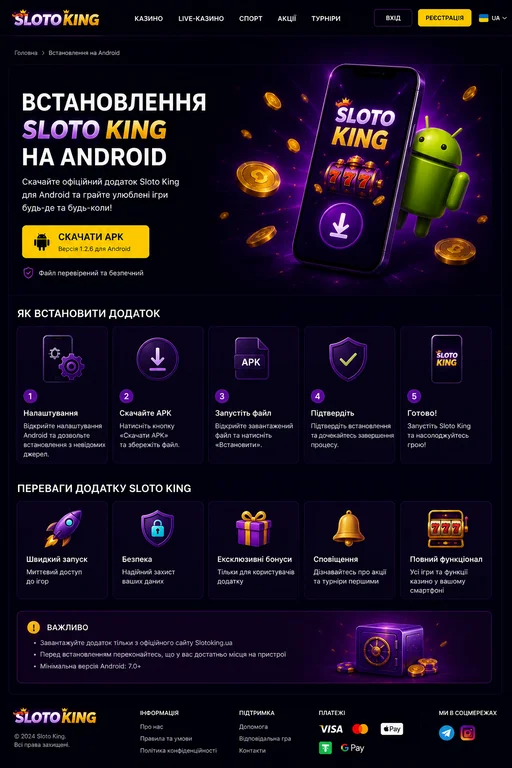
The Android casino client is distributed outside the store, so the sequence differs from the usual one. The casino APK can only be downloaded from the operator's official mobile site — third-party catalogues do not control the contents of the file and take no responsibility for it.
Downloading and system permissions
- Open the official mobile site in Chrome and find the Android button.
- Confirm saving the file to the "Downloads" folder.
- Allow installation from unknown sources: "Settings" → "Security" → "Install unknown apps" → pick the browser the file came from.
- Open the downloaded file through the file manager or the notification panel.
- Press "Install" and wait for it to finish — usually 20–60 seconds.
- Turn the ban on installing from unknown sources back on afterwards.
- Launch the client and sign in with an existing login or register.
Checking the source of the file
Before running the installer it is worth matching the domain name of the download page against the casino's official address and making sure the connection is secure (HTTPS). The file size on the site should match what actually downloaded. Files from forums, messengers and APK aggregators can carry altered code that intercepts sign-in data. If the system warns about a potentially dangerous app from an unknown developer, that is Android's standard reaction to installing outside Google Play — but it does not replace checking the source.
It will not install on the phone
- "Package damaged" — the file did not download in full; delete it and repeat the download on stable Wi-Fi.
- Not enough space — free up at least 300 MB, allowing for data unpacked after installation.
- Play Protect blocking — switch the check off temporarily in Google Play settings and switch it back on after installing.
- Version conflict — delete the old copy of the client before installing the new one.
- An old OS — on Android below 8.0, use the browser version.
- Work profile restrictions — on corporate devices the administrator may forbid third-party installations.
Sloto King on iPhone and tablet
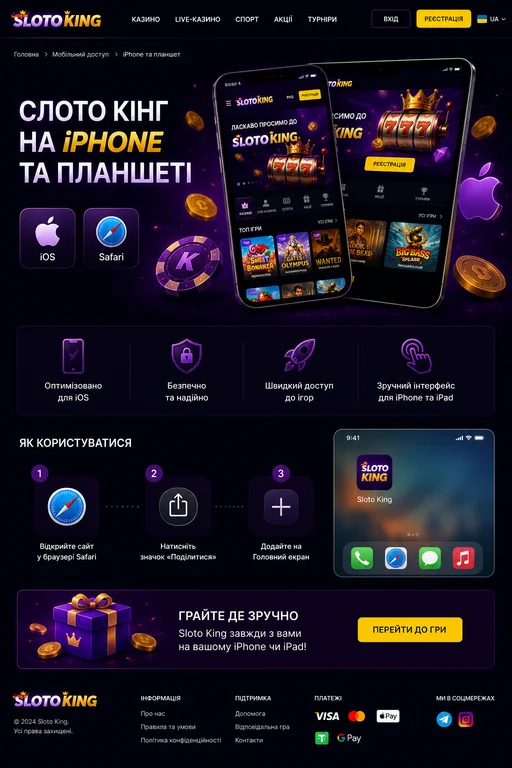
Owners of Apple devices download the client from the App Store, if it is available in the account's region. When the app is not in the store, a full replacement is a shortcut to the mobile version on the home screen: it opens in its own window with no address bar and looks no different from an app.
A home-screen shortcut through Safari
- Open the casino's official site in Safari (Chrome on iOS does not add home-screen shortcuts).
- Press the "Share" button — the square with an arrow pointing up in the bottom bar.
- Scroll the list and choose "Add to Home Screen".
- Edit the shortcut's name — shorten it to "Slotoking", for example.
- Confirm with the "Add" button in the top right corner.
- Find the icon on the home screen and launch it to check.
Full-screen mode and orientation
Launched from the shortcut, the site hides Safari's bars, so the playing field fills the screen. Most slots work in portrait orientation, while live tables and games with a wide field are more comfortable in landscape. If the screen will not rotate, switch off the orientation lock in Control Centre. On an iPad the interface scales to the tablet grid and keeps the side category menu.
The shortcut will not open
A blank page or a connection error usually means a stale saved link or an overflowing Safari cache. It is enough to delete the icon with a long press, clear the site's data under "Settings" → Safari → "Clear History and Website Data", and create the shortcut again from the current address. If the problem repeats while the internet works on other sites, check the content restrictions in Screen Time and switch off the VPN.
Signing in and the Slotoking lobby from a smartphone
Signing in on the mobile version uses the same details as on a computer: a phone number or e-mail and a password. No separate account has to be created for a smartphone, and verification passed on the desktop remains valid. After signing in the lobby opens with search, categories and a section of recently launched games.
A saved session and autofill
The client and the shortcut hold an active session until you log out manually or the server ends the authorisation. The iOS password manager and Google Password Manager fill the details in automatically — convenient, but a risk on a shared device. On someone else's or a work phone it is better to use a private tab and log out after every session.
The slot catalogue on a small screen
- Searching by the game's name is the fastest way to find a particular slot without scrolling the catalogue.
- The provider filter narrows the selection to studios whose games you already know.
- The "Favourites" section keeps a selection between sessions and syncs with the desktop.
- Demo mode is available for most slots and spends nothing from the account.
- The "New" and "Popular" categories cut the time spent browsing a large lobby.
- The autoplay and quick spin buttons are placed in the bottom bar, under your thumb.
Live games over mobile internet
Broadcasts with live dealers need steadier conditions than ordinary slots: the recommended speed is 8 Mbit/s and up with no ping spikes. On a 4G network the picture automatically drops in quality when the signal worsens, so a table can disconnect in a metro or a lift. A stake placed before the break is processed by the server, and the result appears in the round history after you reconnect.
The Slotoking cashier in the mobile version
The cashier section in the app repeats the desktop one: the same methods, limits and processing times. Operations are in hryvnia. A withdrawal is made to the same payment instrument the deposit came from — a standard anti-fraud requirement of licensed operators.
Topping up from a smartphone
A deposit from a smartphone takes under a minute: pick a method in the cashier, enter the amount, and a secure payment page opens with confirmation through 3-D Secure or the banking app. Card details are not stored in the casino client — the payment provider handles them. The money reaches the balance instantly, and if that has not happened within a few minutes, save the receipt and contact support.
Deposit history and withdrawal status
Every transaction is available in the account area under the operation history, with the amount, method, date and current status. A payout request goes through the stages "processing" — "confirmed" — "paid"; until it is processed it can usually be cancelled and the money returned to the gaming balance. Identity verification may be needed before the first withdrawal — a photo of the document uploads straight from the phone's camera.
| Operation | What to keep in mind on mobile |
|---|---|
| Card top-up | Confirmation through the banking app — do not close the casino tab |
| Top-up through a payment service | A switch to an external app and an automatic return to the cashier |
| Withdrawal request | Filed in the account area; the method must match the deposit method |
| Verification | Documents can be photographed and uploaded from the smartphone |
| Operation history | A filter by date and transaction type in the account area |
| Cancelling a payout | Available until the request moves into processing |
Updating the Sloto King client
Because the Android client is installed outside the store, automatic updates do not apply to it — a new version is downloaded by hand from the same official site. The App Store version updates through the system's own tools, and a shortcut on an iPhone picks up changes automatically, since it addresses the current mobile version of the site.
A new version without losing the profile
- Check the installed version number in the client's settings.
- Open the official mobile site and download the current installation file.
- Run it over the existing app — the system will offer an update rather than a clean install.
- Wait for it to finish and open the client: the login and the settings are kept.
- If updating over the top will not go through, delete the old copy and install the new one, then sign in with your details.
Clearing the cache and temporary files
- Open "Settings" → "Apps" and find the casino client in the list.
- Go to the "Storage" section.
- Press "Clear cache" — this removes temporary files but keeps you signed in.
- Use "Clear data" only for serious faults: it resets the settings and requires signing in again.
- Restart the app and check that the lobby loads.
Deleting it without losing the balance
The money and the bet history live on the operator's server, not in the phone's memory, so deleting the app or the shortcut does not affect the balance. After reinstalling it is enough to sign in with the same login to see the account, the bonuses and the status of active payout requests. Access can only be lost along with the sign-in details — which is why the password belongs in a password manager, not only in your memory.
A game will not start at Sloto King
Most failures on a smartphone have nothing to do with the casino and everything to do with the network, the browser cache or a shortage of RAM. Before contacting support, run the basic diagnostics: restart the app, switch networks and check whether the same game opens in another browser.
A black screen and a frozen slot
- Close the game and clear the app fully out of multitasking.
- Close background apps that are eating RAM.
- Clear the client's cache or the site data in the browser.
- Switch from mobile internet to Wi-Fi or the other way round.
- Switch off the VPN, the ad blocker and data-saving mode.
- Restart the smartphone and launch another game as a check.
- If only one game refuses to start, the provider is probably carrying out maintenance.
A dropped connection and switching networks
Moving between Wi-Fi and 4G during a spin does not lose the stake: the round's result is formed on the server and recorded regardless of the connection state on the device. Once the network returns the game loads the outcome and the win appears on the balance. A disputed round can be checked in the bet history of the account area, where the time, the amount and the result are shown. In live games a break while bets are being taken can mean missing the round.
Mobile data usage
Slots consume little data: the bulk goes on the first load of the game's graphics, after which mostly short result requests travel. Live table broadcasts use the most, because the video stream runs continuously. On a capped plan it is worth playing over Wi-Fi, lowering the broadcast quality in the table settings and switching off autoplaying video previews in the lobby.
| Mode | Approximate data usage |
|---|---|
| First load of a slot | A few megabytes of graphics and sound |
| An hour of play in a slot | Tens of megabytes |
| Browsing the lobby and the catalogue | A small amount, growing with game previews |
| An hour at a live table | The heaviest — a continuous video stream |
| Cashier operations | A minimal amount of data |
Mobile sign-in safety at Slotoking
A smartphone keeps a session longer than a computer, so basic access hygiene matters more. The key rules: the installation file only from the official source, a unique password for the casino, and a screen lock on the device used to sign in to an account holding money.
Permissions and local storage
- A casino client needs no access to contacts, SMS or the call log — such requests are a reason to doubt the source of the file.
- Camera access is requested only for uploading documents during verification.
- Notifications can be switched off in the system settings if pushes are unwelcome on a shared device.
- Card data is stored by the payment provider, not by the casino app.
- The cache and cookies are worth clearing after playing on someone else's phone.
- Cloud backups of apps are better avoided on a device others can access.
Screen lock and session control
- Switch on a PIN, a fingerprint or Face ID on the smartphone itself.
- Do not reuse the casino password in other services or mailboxes.
- Log out of the account after playing on someone else's or a work device.
- Avoid signing in over public Wi-Fi with no password, especially for cashier operations.
- Check the operation history after every top-up and payout.
- Use the deposit limits and self-restriction tools in the account area to control spending.
Slotoking support for the mobile version
Technical questions about installation, updates and in-game failures are handled by casino support. To speed up the answer, state the phone model, the OS version, the access method (client, shortcut or browser), the game's name and the time of the incident, and attach a screenshot of the error.
| Channel | What it suits |
|---|---|
| Live chat on the site | Urgent failures: a game will not start, no access to the cashier |
| Verification, disputed transactions, documents and screenshots | |
| Phone line | Account questions, where the operator lists one |
| The help section on the site | Standard installation and update instructions |
| The feedback form | Complaints and suggestions about the mobile version |
FAQ
Short answers to the most common questions about mobile access, installation and how the casino behaves on a smartphone.
Is there a separate Slotoking app for Android?
The Android client is distributed as an installation file from the official mobile site, because Google Play's rules restrict listing real-money gambling apps. There is no casino app in the store itself, so links from other sources are best ignored. The alternative without installing anything is the mobile version in a browser with a home-screen shortcut.
How do I add Slotoking to the iPhone home screen?
Open the official site in Safari, press the "Share" button, choose "Add to Home Screen", change the name if you want and confirm with "Add". The icon appears among the ordinary apps and opens the casino full screen with no address bar. Chrome on iOS has no such function.
How much data does playing from a smartphone use?
Slots mostly spend a few megabytes on the initial load of the game and tens of megabytes per hour of an active session. The heaviest are live tables with real dealers, since video is streamed continuously. On a capped plan it is better to play over Wi-Fi and lower the broadcast quality.
Does the balance survive deleting the shortcut?
Yes. The money, the bet history and the bonuses are kept on the casino's server and tied to the account, not to the device. Deleting the shortcut or the client changes nothing: after signing in again with the same login the balance is shown in full. The one thing not to lose is your sign-in details.
Gambling can be addictive. Play responsibly, set deposit and time limits, and seek help when you need it. Participation is allowed for people aged 21 and over.
